Pages

Showing posts with label Cassandra. Show all posts

Friday, June 29, 2012

NO SQL with Cassandra: Step by Step with Cassandra CLI


Step 1: Please navigate to the folder in which you have installed and configured Cassandra\bin directory in my case it is E:\software\cassandra\bin. Then please execute the batch command Cassandra-cli


 Step 2: Now you will see the following screen which will show the prompt related to Cassandra after connecting to the server.
 Step 3: Let us create the Keyspace for working as “Test”

Step 4: The message will get into an agreement with the cluster and it creates the keyspace, please assume that keyspace is analogous to Database in RDBMS. Now let us use the keyspace using the command “use test;”
Now you will get a message such as Authenticated to keyspace: test

Step 5: Creating the User column family.

As per the screenshot we have created the column family with the columns full_name, email and gender.

Step 6: Now let us see how to insert values in to these columnfamily we have just created.
In the above given screenshot you can realize how we have inserted value to the column family in Cassandra.

Step 7: Now let us see how we need  to read the ones which are stored, that’s pretty simple just give List Users;

In this you can realize that each of it has column name, value and its timestamp. Wonderful isn’t? Now I have added a new column called birth_year to the user kumar with the value 1980, as given in the following:

Now let’s list the users and see what impact it has made.

Now it has listed two users  one user with 3 column values and another user with 4 column values. hope now you have realized how we can add columns dynamically with Cassandra.
Step 8: Let’s try and get value for a specific user.  Now you need to user GET.

The command will go like this GET users[‘siva’];

Step 9:  We will try to retrieve the value for specific column for the specific user’s email id.
The command will go like this GET users[‘siva’][‘email’];

Step 10: How to delete a particular column for the given user?
This ends my preliminary exploration of Cassandra for NOSQL. Will try to come up with more experiments in the upcoming days. Thanks.

Wednesday, June 27, 2012

Understanding NOSQL through Cassandra II


In continuation to my previous blog, this blog will explore the Key-Value Store working methods and its relevance with Cassandra.

Before we enter into the practical aspects of Key-Value pairs we might need to come across some technical terms with respect to Cassandra such as KeySpace, Column Family, etc., We will just go across for short time and will jump on to exploring key-value pairs concept in Cassandra.

Cassandra Key Space and Column Families:
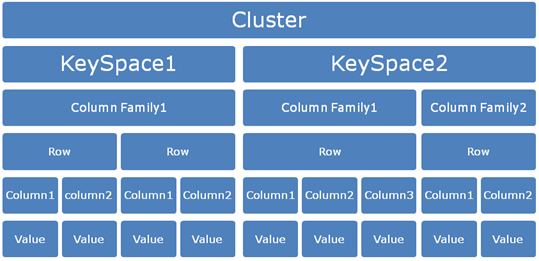
If we have database in an RDBMS system the equivalent in Cassandra is Keyspace. 


Similar to the way a database contains a group of tables; a Keyspace contains a group of Column Families or its logical namespace for a group of column families.  That brings us to a new term Column families. One keyspace can have one or more column families.

What are exactly column families?

When we say keyspace analogous with Database, Column families are analogous to tables. Column family is set of columns. In Cassandra each column family is stored in a separate file which is sorted in a row. This is a container for collection of rows.  The row key determines in which machine the data is stored.

Executing commands in Cassandra CLI:
Please note that in Cassandra all the commands will get executed only if its terminated with “;”. Pressing a return or enter key without Semicolon will expect more inputs from the end user in the CLI (Command Line Interface)


We will see practical aspects of using the same in Cassandra in my next blog.

Tuesday, June 26, 2012

Understanding NOSQL through Cassandra I


Though Cassandra has been having lot of attention these days, I was trying to get hold of some example which could be real eye opener who are very much accustomed with traditional SQL Type databases. I have tried to come across some fundamentals of NOSQL which I came across during this evaluation process of exploring Cassandra.

“Key value stores allow the application developer to store schema-less data. This data is usually consisting of a string which represents the key and the actual data which is considered to be the value in the "key - value" relationship

Key-Value Model:
Key-Value store is one of the key elements of non-relational database systems. Cassandra is based on Key-Value Model.

We can even say it as data store of key-value pairs. If you are familiar with programming constructs in languages such as Java, C# you will understand more on Key-value models. These programming languages use the key-value model with Hashtable, Map, Hash, etc.,

Example of key-value model can be given as below:

Name: Siva
Age: 32
Location: India

On the left hand side what you have is the key and on the right hand side what you have is the value. The combination becomes Key-value pair.

Keys: Name, Age, Location
Values: Siva, 32, India

In general terminology it’s called KVP (Key-Value Pairs). So it becomes easy to query the key and retrieve the respective value. This is the reason the distributed systems use this kind of mechanism for quick retrieval of data irrespective of the data type they handle.

We will see more in the next post.

Thursday, June 21, 2012

Installing and running Cassandra Windows XP


To know more about Cassandra please check this url : http://cassandra.apache.org/This particular guide refers to Cassandra 1.1.1.

Step:1
Visit the url http://cassandra.apache.org/download/ click the download link which will take you to the following page:


Step 2: Verify if you have java installed and configured in your PC earlier by issuing a command java –version in the command prompt.
         

Step 3: Verify the JAVA_HOME environment variable is set in your PC by using echo %JAVA_HOME% at the command prompt. If you would like to know how to set the environment variable for Java please refer to this link.


Step 4: Similarly setup the Cassandra Home as given in the picture below:


You can verify the correctness by opening a new command prompt and giving the command echo %CASSANDRA_HOME%


Step 5: Please go ahead and install the Cassandra by using the command cassandra/bin/cassandra.bat install” to install as a service.

You will get the message “Installation of “Cassandra” is complete.

Step 6: Starting Cassandra Server, go to the command prompt and enter “Cassandra/bin/Cassandra.bat”. You will get a message “Listening for thrift clients…”


Once the server is started you can see the list of directories created under the root of the Cassandra folder automatically.


Please refer to the log file created as given below under the folder e:\var\log\Cassandra\system.log:


Step 7: Start the Cassandra Client as given below “bin/cassandra-cli --host localhost”

 Voila...You have run the Cassandra. J